
How to Change Snapchat Icon Without Snapchat Plus – Know Complete Guide 2026
You can change Snapchat icon without Snapchat Plus using free methods on Android and iPhone. Snapchat+ gives official premium icons, but it is not required. Android users can use launcher apps, and iPhone users can use the Shortcuts app. Apps like X Icon Changer also help create custom icons.
These methods only change the home screen look, not the Snapchat app itself. The process is safe if you use trusted tools. You may need to restart your phone if changes do not appear. This guide helps you customize the Snapchat icon for free in 2026 easily and safely.
What is Snapchat+ and Why Does It Matter?
Snapchat+ is a paid version of Snapchat that gives extra features you don’t get in the normal app. It is made for users who want more control, more style, and more personalization. One of the main reasons people use Snapchat+ is app icon customization. Instead of only seeing the default Snapchat icon, you can choose different designs like gradients, flags, and special themed icons.
Snapchat+ also includes other Snap features like:
- Ghost Trails (see where friends have been)
- Rewatch Indicator (see who rewatched your snaps)
- Exclusive profile features
- Extra customization tools
These features make the app feel more personal and advanced compared to the free version.
Can You Change Snapchat Icon Without Snapchat Plus?
Yes, you can. Snapchat Plus gives built-in exclusive icons, but it is not the only way.
Free methods used:
- Android launcher tools
- iPhone Shortcuts app
- Icon changer apps like X Icon Changer
- Custom home screen personalization tools
These methods do not change Snapchat inside the app. Instead, they change the home screen shortcut appearance.
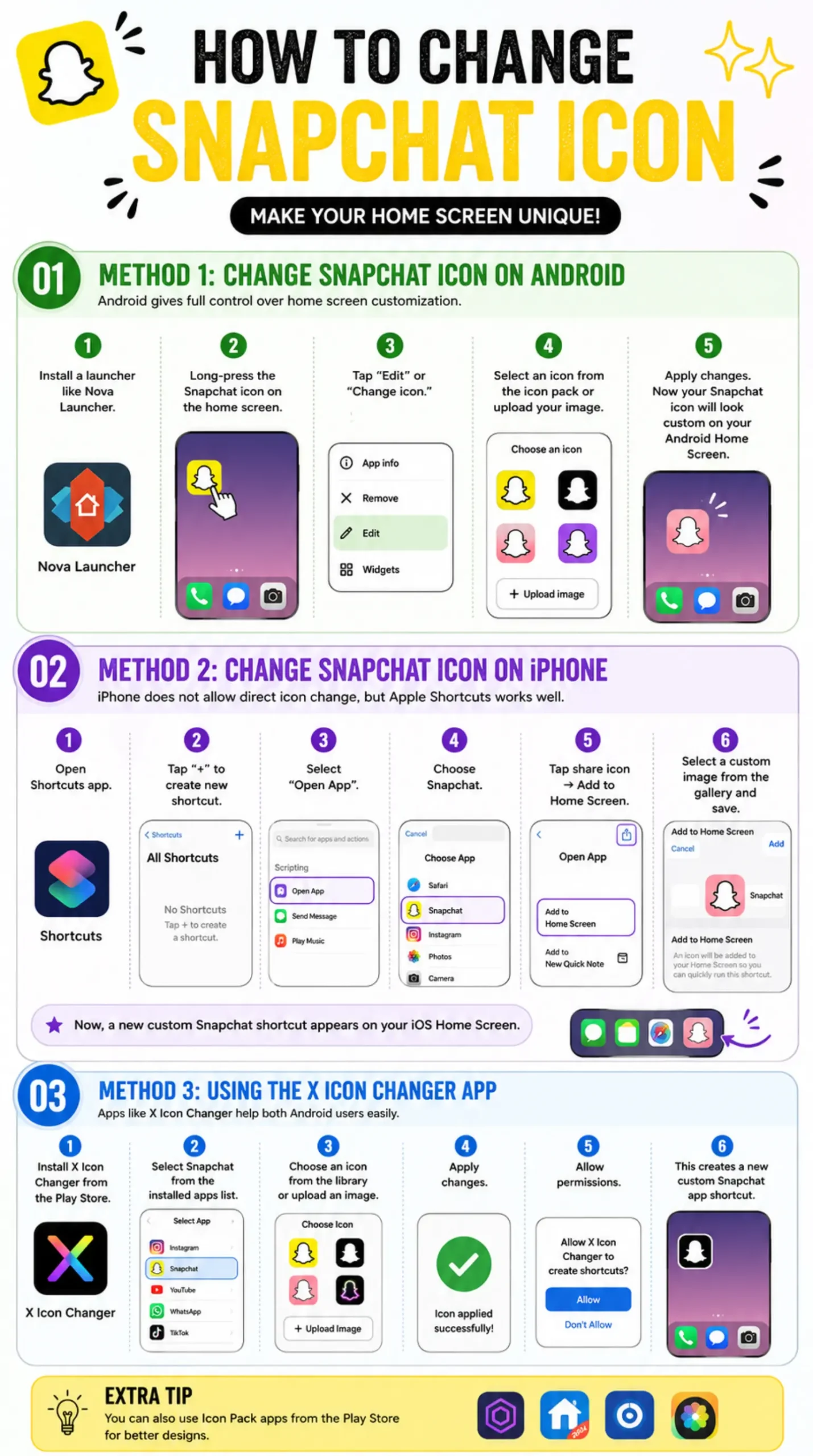
Method 1: Change Snapchat Icon on Android
Android gives full control over home screen customization.
Steps:
- Install a launcher like Nova Launcher.
- Long-press the Snapchat icon on the home screen
- Tap “Edit” or “Change icon.”
- Select an icon from the icon pack or upload your image
- Apply changes
Now your Snapchat icon will look custom on your Android Home Screen.
Extra Tip
You can also use Icon Pack apps from the Play Store for better designs.
Method 2: Change Snapchat Icon on iPhone
iPhone does not allow direct icon change, but Apple Shortcuts works well.
Steps:
- Open Shortcuts app
- Tap “+” to create new shortcut
- Select “Open App”
- Choose Snapchat
- Tap share icon → Add to Home Screen
- Select a custom image from the gallery
- Save
Now, a new custom Snapchat shortcut appears on your iOS Home Screen.
Method 3: Using the X Icon Changer App
Apps like X Icon Changer help both Android users easily.
Steps:
- Install X Icon Changer from the Play Store
- Select Snapchat from the installed apps list
- Choose an icon from the library or upload an image
- Apply changes
- Allow permissions
This creates a new custom Snapchat app shortcut.
How to Change Snapchat Icon with Snapchat Plus?
If you already have Snapchat+, changing the icon is very simple. Snapchat gives this option inside the app settings.
Steps:
- Open the Snapchat app
- Tap on your Bitmoji (top left corner)
- Open your Snapchat profile page
- Tap on your Snapchat+ membership card
- Select the “App Icon” option
- Choose any icon you like from the list
- Apply the changes
- Restart your phone if the icon does not update
After this, your Snapchat icon will change on your home screen. This method is fast and safe because it is an official Snapchat feature.
Snapchat+ vs Free Icon Change Methods
| Feature | Snapchat+ | Free Methods |
|---|---|---|
| Official support | Yes | No |
| Exclusive icons | Yes | No |
| Custom image upload | Limited | Yes |
| Cost | Paid subscription | Free |
| System stability | High | Medium |
Snapchat+ gives official icons like gradient icons and themed icons, but free methods give more personal freedom.
Why Snapchat Icon May Not Change
Sometimes users face issues like:
- Snapchat icon not updating
- Shortcut not appearing
- Cache or system delay
- Missing permissions
- Outdated launcher or app
Fix:
- Restart your phone
- Update Snapchat
- Clear cache
- Recreate shortcut
Why Choose Snapchat+ Over the Free Method?
Snapchat+ gives a smoother and more reliable experience compared to free methods.
Here’s why many users prefer it:
- It is official, so no risk of bugs or errors
- Icon changes are stable and permanent
- You get exclusive icon designs not available anywhere else
- No need to install third-party apps
- Better app performance and updates
Free methods can also change the icon, but they usually create shortcuts. These shortcuts sometimes feel less smooth or can disappear after updates. Snapchat+ is better if you want a clean, simple, and professional setup.
Is It Safe to change the Snapchat Icon?
Yes, if you follow safe methods.
Safe options:
- Android launcher customization
- iPhone Shortcuts app
- Trusted icon apps
Avoid:
- Unknown APK files
- Suspicious third-party apps
Your Snapchat account stays safe because these methods only change appearance, not app data.
Extra Customization Ideas
You can make your phone look more premium by:
- Matching the Snapchat icon with the Bitmoji style
- Using home screen themes
- Organizing apps into custom folders
- Applying full icon packs
This improves your overall mobile personalization experience.
Extra Tips for Customizing Your Snapchat Experience
If you want your Snapchat to look more unique, you can do more than just change the icon.
1. Update Your Bitmoji
Your Bitmoji is your Snapchat identity. Keep it updated with your current style or mood. It makes your profile look more active and personal.
2. Match Your Home Screen Theme
Try matching your Snapchat icon with your wallpaper or other app icons. This gives your phone a clean and aesthetic look.
3. Organize Your Apps
Keep Snapchat on the main screen so it is easy to access. A clean layout makes your phone look better and easier to use.
4. Use Simple Designs
Simple icon styles look more modern and professional compared to too many bright or heavy designs.
5. Keep App Updated
Always update Snapchat. New updates sometimes bring new icons and better customization features.
FAQ Section
Can I change Snapchat icon without Snapchat Plus?
Yes, using Android launcher or iPhone Shortcuts.
Is Snapchat Plus required for the icon change?
No, it is optional for official icons only.
How to change the Snapchat icon on Android?
Use Nova Launcher or icon changer apps.
How to change the Snapchat icon on an iPhone?
Use the Apple Shortcuts app.
Is X Icon Changer safe?
Yes, if downloaded from the official Play Store.
Why is my Snapchat icon not changing?
Restart the device or recreate the shortcut.
Does changing the icon affect the Snapchat account?
No, it only changes appearance.
Can I restore the default Snapchat icon?
Yes, remove the shortcut or reset the launcher.
Final Thoughts
Change Snapchat icon is a simple way to make your phone look more personal and unique. If you use Snapchat+, you can easily select different official icons and apply them directly from the app in just a few taps. It is safe, smooth, and gives a better experience.
Free methods also work, but they usually rely on shortcuts or third-party tools. Both options can help you customize your Snapchat look, but Snapchat+ gives more stable results. In the end, it depends on your choice, whether you want official features or a free creative method.