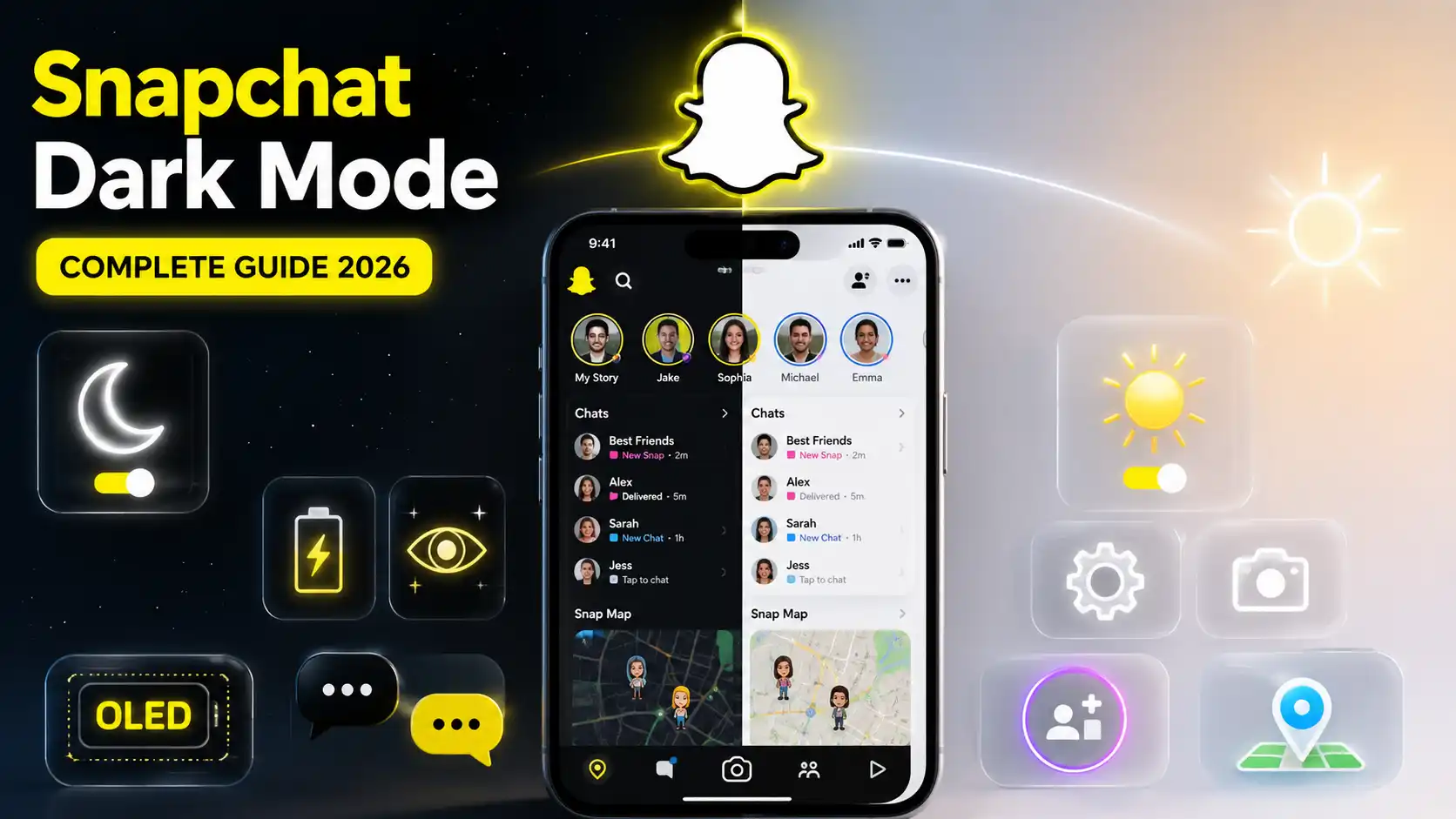
Snapchat Dark Mode: How to Turn It On or Off (2026 Guide)
Introduction
Do you like using Snapchat in dark mode instead of the normal bright screen? Snapchat Dark Mode changes the app’s appearance to darker colors. It can feel more comfortable when you are using it at night or in a dim room. The feature is available on supported iPhone and Android versions. However, the steps and options may vary depending on your device and Snapchat app version.
Some people enable Dark Mode because they prefer its appearance, while others find it easier on their eyes during long use. In this guide, we will explain what Snapchat Dark Mode does and how to turn it on or off. We will also show where to find the setting on different devices and what to do if it is missing.
What Is Snapchat Dark Mode?
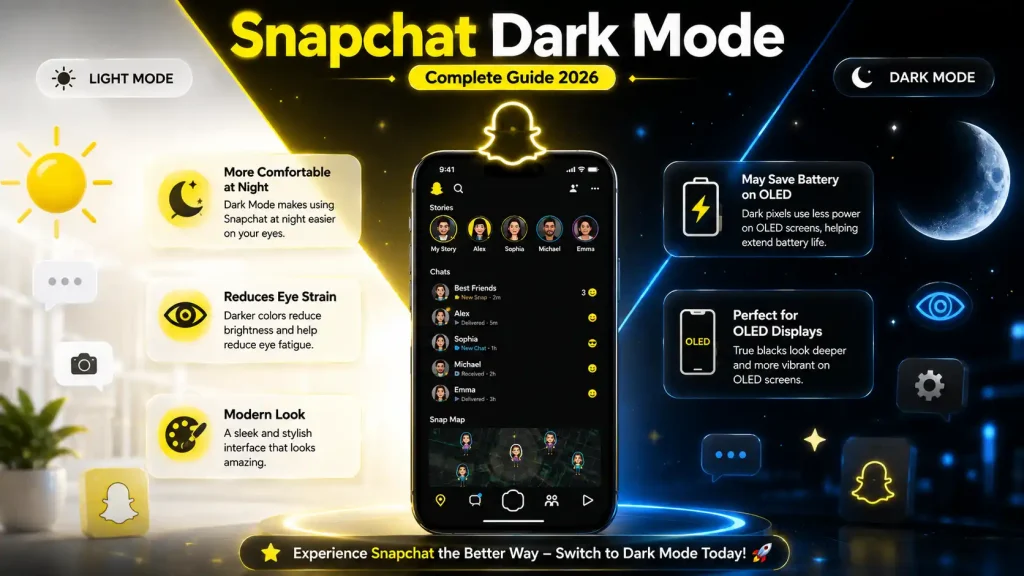
Snapchat Dark Mode is an appearance setting. It changes Snapchat from its usual light interface to a darker one. The app displays menus, screens, and other sections with a dark theme rather than a light background.
It changes how the app looks, but it does not change the way Snapchat works. Your chats, Stories, Snap Map, streaks, and account settings remain available as normal.
People may choose Dark Mode because it can:
- Feel more comfortable when using Snapchat in low light.
- Make nighttime browsing easier on the eyes.
- Use less power on some OLED and AMOLED screens.
- Give the app a darker look that some users simply prefer.
Can You Use Dark Mode on Snapchat?
Yes, Snapchat Dark Mode is available on both iPhone and Android devices. The setting may vary from one device to another because Snapchat versions and phone software are not always the same. A few things can affect whether the option appears:
- The version of Snapchat installed on your phone
- Your iOS or Android version
- Your device’s display and theme settings
- Whether the Dark Mode feature is available on your current app version
If you cannot find Dark Mode, check the App Store or Google Play Store for a Snapchat update. It is also worth checking for a software update on your phone before trying the setting again.
How to Turn On Snapchat Dark Mode on iPhone
You can easily turn on Dark Mode on an iPhone very quickly. Snapchat gives you the option to keep the app dark all the time or have it follow your iPhone’s theme. Some of these methods are given below:
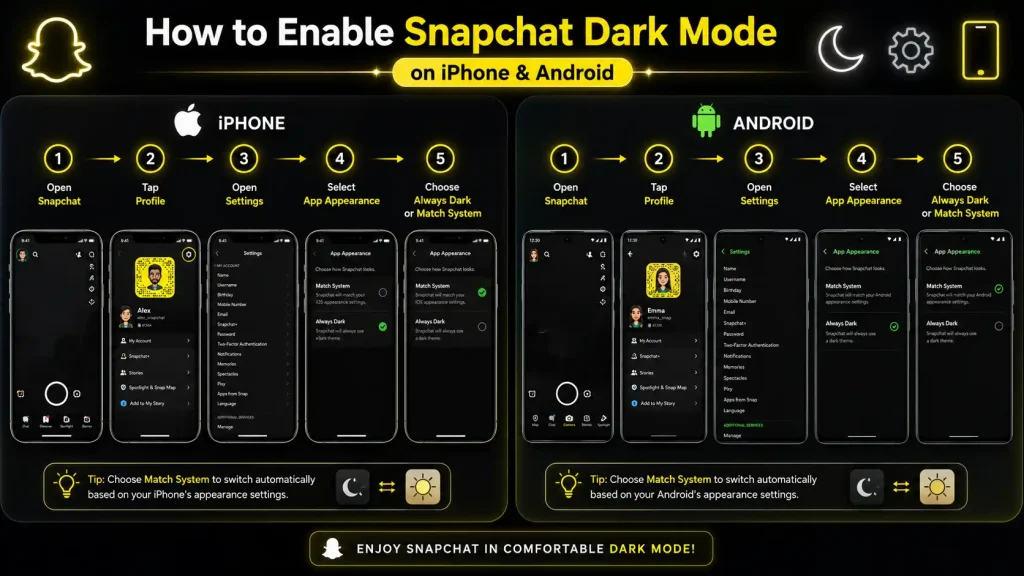
Method 1: Use Snapchat’s Appearance Setting
- Open Snapchat.
- Tap on your profile icon.
- Click on the Settings (⚙️) icon.
- Now scroll down and select App Appearance.
- Choose Always Dark Mode.
Note: The screen will become dark as soon as you enable it.
Method 2: Match Your iPhone Theme
If you want Snapchat to sync with your iPhone’s light or dark mode:
- Firstly, open Snapchat Settings.
- Tap on App Appearance.
- Select Match System.
The app will match your iPhone’s theme by switching between light and dark.
Also Read Articles Now,
- Snapchat Ghost Mode Explained: How to Enable, Disable & Stay Private
- Mars Snapchat Planet: Meaning, Position, Emoji & Friend Ranking
- Saturn Snapchat Planet: Meaning, Position & Friend Solar System Guide
- What Does BTW Mean on Snapchat? Meaning, Usage & Examples
- What Does ISTG Mean on Snapchat? Meaning, Usage & Examples
- How to Get Snapchat Plus Free Trial Today (Step-by-Step Guide)
- How to Get Snapchat Plus Free Trial Today (Step-by-Step Guide)
- How to Get Snapchat Plus Free Trial Today (Step-by-Step Guide)
- How to Get Snapchat Plus Free Trial Today (Step-by-Step Guide)
- What Does ISTG Mean on Snapchat? Meaning, Usage & Examples
- What does Purple Circle mean on Snapchat? Color Meanings Explained
- Snapchat Emojis Meanings (2026): Every Heart, Icon & Planet Explained
- How to Start & Restore a Snapchat Streak (Step-by-Step)
- How to Change Snapchat Icon Without Snapchat Plus – Know Complete Guide 2026
- How To Know If Someone Has Snapchat Plus – Know Step-by-Step Guide 2026
- How to Get a Snapchat Free Trial Easily – Step-by-Step Complete Guide 2026
- How Long Does The Snapchat Solar System Take To Update?
How to Turn On Snapchat Dark Mode on Android
Android users can enable Snapchat Dark Mode when the option is available in their app version. You can change it directly through Snapchat or allow the app to follow your phone’s system theme.
Method 1: Use Snapchat Settings
- Open your Snapchat app.
- Tap on the profile picture.
- Then click on Settings from the device.
- Look for App Appearance.
- Must select Always Dark or Match System.
If App Appearance is not available, check the Google Play Store for a Snapchat update. The setting can also vary between Android versions.
Method 2: Use Android’s System Dark Mode
If your Snapchat version supports your phone’s system theme:
- Click on Settings on your Android phone.
- Tap on Display.
- Then turn on Dark Theme.
- Reopen the Snapchat app.
Note: When Snapchat is set to Match System, the app will follow your Android device’s theme. It will switch based on the light or dark mode selected on your phone.
How to Enable Snapchat Dark Mode on the Web
Snapchat for Web may display and manage Dark Mode differently from the mobile version. The appearance options may vary depending on your browser, operating system, and Snapchat for Web version. To check for a dark theme:
- Open Snapchat for Web and sign in.
- Check the available settings for an Appearance or Theme option.
- If there is no separate Dark Mode setting, check your browser or operating system’s dark theme.
- Refresh Snapchat for Web after changing the theme.
The available options may differ between browsers and can change as Snapchat updates its web experience.
How to Turn Off Snapchat Dark Mode
If you want to use the regular light theme again, simply change it in the App Appearance settings.
- Open Snapchat and go to Settings.
- Tap App Appearance.
- Select Always Light to switch to the light theme.
You can also choose Match System if you want Snapchat to follow your phone’s display setting. It will then switch between Light and Dark Mode when your device’s theme changes.
Snapchat App Appearance Options
Snapchat’s App Appearance settings allow you to decide how the app should look. You can choose a fixed theme or make Snapchat follow your phone’s current display setting.
| Option | What It Does |
| Always Light | Keeps Snapchat in the regular Light Mode. |
| Always Dark | Keeps Snapchat in Dark Mode, even if your phone uses a light theme. |
| Match System | Makes Snapchat follow the current Light or Dark theme on your phone. |
Benefits of Snapchat Dark Mode
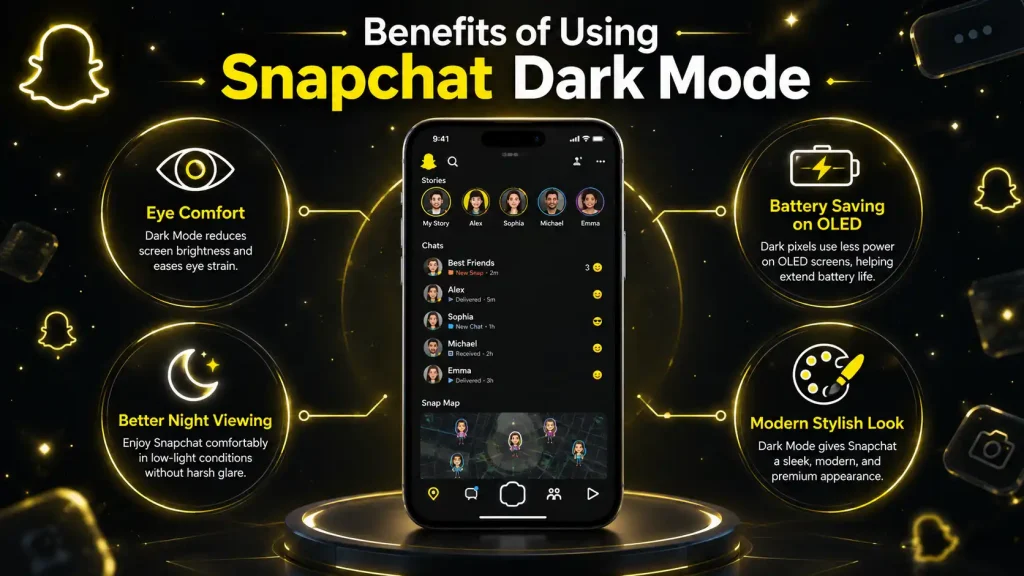
Dark Mode is not just about changing Snapchat’s colors. Some users prefer the darker screen because it feels more relaxing in low light. Some of the benefits of Snapchat Dark Mode are given below:
Easier on Your Eyes
A darker screen can feel less harsh when you are using Snapchat in a dim room. Lower brightness can also make the Snapchat app feel more comfortable than a bright white screen.
More Comfortable at Night
A bright display can look harsh in a dark environment. Dark Mode makes the app look smoother and less bright. It also helps you to check messages more easily at night.
May Reduce Battery Use
Dark Mode can help reduce power usage on phones with OLED or AMOLED displays. This is because darker pixels consume less energy than bright ones.
Gives Snapchat a Different Look
The darker interface also changes the overall feel of the Snapchat app. If you like dark themes in other apps, you may find this look cleaner and more visually appealing.
Does Snapchat Dark Mode Save Battery?
Dark Mode can improve battery life on some phones, which depends on the display they use. On OLED and AMOLED displays, Dark Mode can use less power because black pixels can be dimmed or completely turned off. LCD screens work differently because their backlight stays on across the display. On LCD phones, Dark Mode generally makes very little difference to battery usage.
Your screen brightness, phone model, and how long you spend using Snapchat also affect battery life. Dark Mode may help reduce battery usage a little on supported devices, but it is not a major way to extend battery life.
Why Is Snapchat Dark Mode Missing?
If you cannot find the Dark Mode option in Snapchat, there will be a few reasons for it. Your app version, device, operating system, and Snapchat’s feature rollout can affect whether the setting appears.
Your Snapchat App Is Outdated
An older version of Snapchat may not include the latest App Appearance settings. If your app is not up to date, you may not see the Dark Mode option.
The Feature Is Not Available on Your Account Yet
Some Snapchat users may see new features earlier because they are released in phases. So, sometimes the latest app and system updates, some features may not appear on your account right away.
Your Phone Software Is Outdated
The version of iOS or Android on your phone can also affect compatibility with newer Snapchat features. If your device is running older system software, some appearance options may not work as expected.
How to Fix Snapchat Dark Mode Not Showing
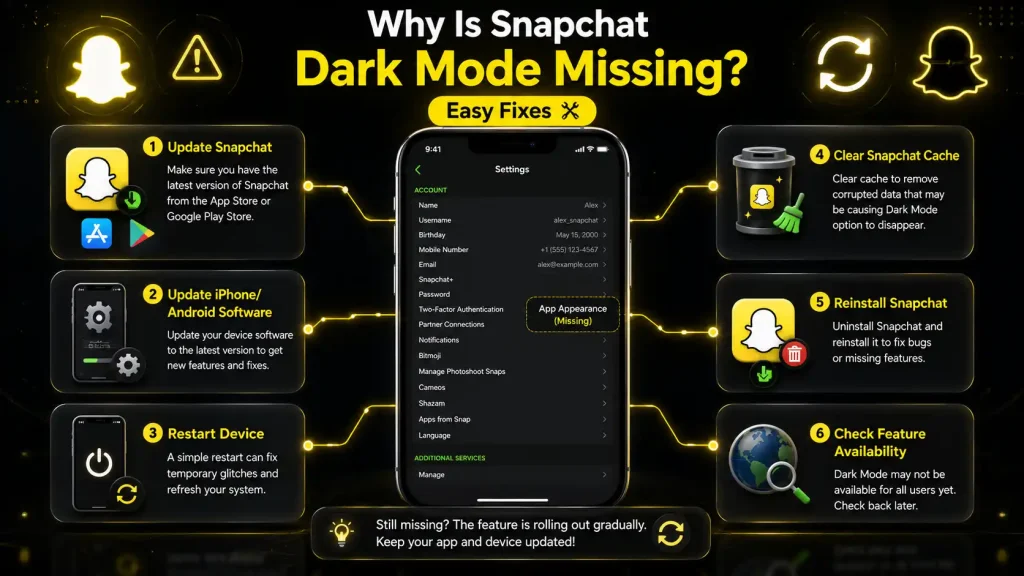
If the Dark Mode option is still missing after checking your app and device, try these fixes. Go through each solution one by one to resolve the issue.
Update Snapchat
Open your App Store or Google Play Store and check for a newer Snapchat version. Install any available updates, then reopen Snapchat and check the App Appearance setting again.
Restart Your Phone
Completely exit Snapchat and reboot your device. This can refresh the app and clear a temporary issue that may be affecting its settings.
Clear Snapchat Cache
It removes temporary files but keeps your account and data safe. In Snapchat, just go to:
Snapchat → Settings → Clear Cache
Once the cache is cleared, reopen the app and check the appearance settings.
Update Your Phone
Check your device settings for an available iOS or Android update. Keeping your phone software current can improve compatibility with newer Snapchat features.
Reinstall Snapchat
If Dark Mode still does not appear, uninstall Snapchat from your device. Then download and install it again from the official app store. Just sign back into your account and check App Appearance once more.
Does Dark Mode Affect Snapchat Features?
Not really. Dark Mode is a visual setting, so it does not disable the features you use in Snapchat. You can continue sending Snaps and replying to chats. You can also watch Stories, check Snap Map, and view Memories and Spotlight. Video calls, Friend Solar System, and Streaks are still available. In other words, choosing a darker theme does not change your regular Snapchat activity. Your account and its usual features continue to work the same way in either theme.
Does Everyone Have Snapchat Dark Mode?
Dark Mode is available for many Snapchat users. However, the option may appear differently depending on the device or settings. Availability can depend on your device and the software you are using. It may also vary based on the Snapchat version installed on your phone. Things that may affect what you see may include:
If Dark Mode is not showing, check for any app or system updates first. Then open Snapchat and look under App Appearance again. If the option is still unavailable, it may simply not be available for your account yet.
Common Snapchat Dark Mode Problems
Dark Mode usually works smoothly without any issues. That’s why you might sometimes notice small differences from what you expected. Some of the common Snapchat Dark Mode problems are listed below:
Dark Mode Keeps Turning Off
You can check the setting under App Appearance. If Snapchat is set to Match System, it will follow your phone’s theme. It may switch between Light and Dark Mode when your device changes its appearance.
Some Parts of Snapchat Still Look Light
Dark Mode does not necessarily make every screen completely black. Some pages or sections of the app may still show lighter elements. This can depend on Snapchat’s design and the version installed on your device.
App Appearance Is Missing
If you cannot find the App Appearance section, first you should update Snapchat and your phone software. After the update, relaunch the app and check your settings once more.
Snapchat Dark Mode vs Light Mode
Both themes allow you to use Snapchat normally. The screen experience may feel different depending on your surroundings and personal preference.
| Feature | Dark Mode | Light Mode |
| Eye Comfort | Often more comfortable in dim rooms | Can be easier to see in bright surroundings |
| Battery Usage | May use less power on some OLED or AMOLED screens | Usually has no similar OLED advantage |
| Night Viewing | Softer appearance in low light | Brighter and more noticeable at night |
| Appearance | Darker interface and backgrounds | Bright interface with lighter backgrounds |
Tips for Using Snapchat in Dark Mode
A few small changes can make Dark Mode more comfortable to use. So sme tips for uing Snapchat in Dark Mode are given below:
- Keep Snapchat updated: New versions can include appearance improvements and other fixes.
- Try Match System: Allow Snapchat to follow your phone’s Light and Dark theme automatically.
- Lower the brightness at night: Even with Dark Mode, high brightness can make the screen look bright.
- Use your phone’s eye comfort feature: If your phone supports it, enabling Night Shift or Eye Comfort can make the display feel more comfortable.
- Restart Snapchat after changing settings: If the theme does not update immediately, just close and reopen the Snapchat app.
FREQUENTLY ASKED QUESTIONS (FAQs)
Is Snapchat Dark Mode available for everyone?
Yes. It is fully available on iPhone, but limited or unavailable on some Android devices.
Does Dark Mode save battery?
Yes, especially on phones with OLED screens.
Can I schedule Dark Mode on Snapchat?
No, Snapchat does not currently offer a scheduling option.
Why do not I see Dark Mode on my phone?
You may need to update the app or wait for the feature to roll out in your region.
Does Dark Mode change Snap quality?
No, it only changes the app’s appearance, not any image or video quality.
Conclusion
Snapchat Dark Mode is not just about looks. It also makes the app easier and more comfortable while enhancing usability and overall experience. You can easily reduce brightness and glare, which helps to protect your eyes during long usage, especially at night. It also adds a modern and sleek look that many users prefer over the default light theme.
If you spend a lot of time on Snapchat, you should try Dark Mode. iPhone users can also easily turn on Dark Mode. It makes the app easier to use in low light. It also gives a smoother and more comfortable feel while using it.